
Clear handoff from OMS
Templates and BOM definitions created in OMS become the statuses and components the floor sees on each manufacturing order.
After OMS defines BOM SKUs, Synsets, and Kanban templates, the warehouse team builds finished units and moves orders toward shipment. This page ties together the Pending, Manufacture, and Processing parts of that path, and calls out Processing behaviors that apply only to manufacturing orders. Manufacturing orders behave like focused work requests: they tell the warehouse how many BOM SKU units to assemble and which Kanban statuses apply.
Finish OMS manufacturing setup
Complete BOM SKU and Synset setup, assign a Kanban template, and confirm any Instructions or Attachment fields you expect on the Synset. See Manufacturing - setup.
Know the high-level sequence
The OMS troubleshooting guide summarizes the warehouse path as Pending → Manufacture, then Processing / Kanban—not the OMS product screens alone. See the table under Troubleshooting in Manufacturing - setup.
ShipEdge supports two manufacturing modes before work moves to Processing:
The steps below are the same path for both; only how orders appear in the modal changes.
Open Manufacture from Pending
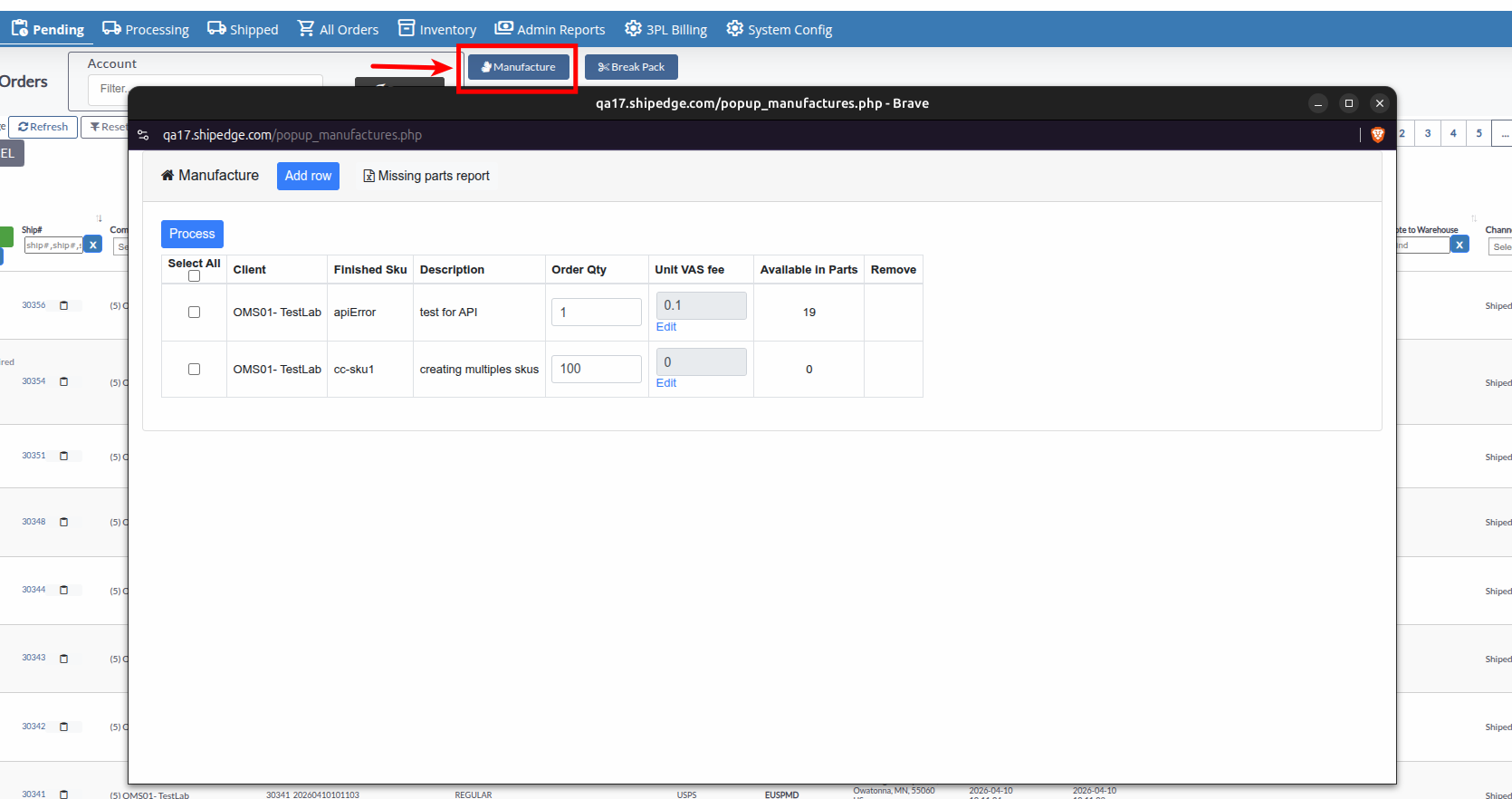
In WMS, go to Pending, then click Manufacture.
Click Add Row
Click Add Row to create a new manufacturing line.
Set Client, BOM SKU, and Quantity
Choose the Client, the BOM SKU to assemble, and the Quantity you want to produce.
Edit Unit VAS fee
In the table, update the Unit VAS fee column for each row that needs a value or correction, then click Save.
Select rows and click Process
Select the checkboxes for the push rows you want to run, then click Process.
Open Manufacture from Pending
In WMS, go to Pending, then click Manufacture.
Select Orders to Process
Select the checkboxes for the orders you want to process.
Edit Quantity
In the table, update the Order Qty column for each row.
Click Process
Click Process to process the selected orders.
Access the order processing workflow
Go to WMS, then click the Processing tab to access the order processing table.
Obtain a summary of the order
Click the Get Work Order button to obtain a summary of the order. After checking the summary, close the preview modal by clicking the red X button in the top right corner.
Initiate manufacturing operations (Single Order)
Perform bulk operations (Multiple Orders)
Kanban templates are defined in OMS (column names, order, and rules like Backlog and Done). In the warehouse, each template column is the status a manufacturing order shows while it moves through assembly—operators advance work from one stage to the next until the job reaches Done and can continue toward shipping.
If you change a BOM SKU’s template, that change applies to new manufacturing orders only, not orders already in progress. Full template setup lives in Manufacturing - setup.
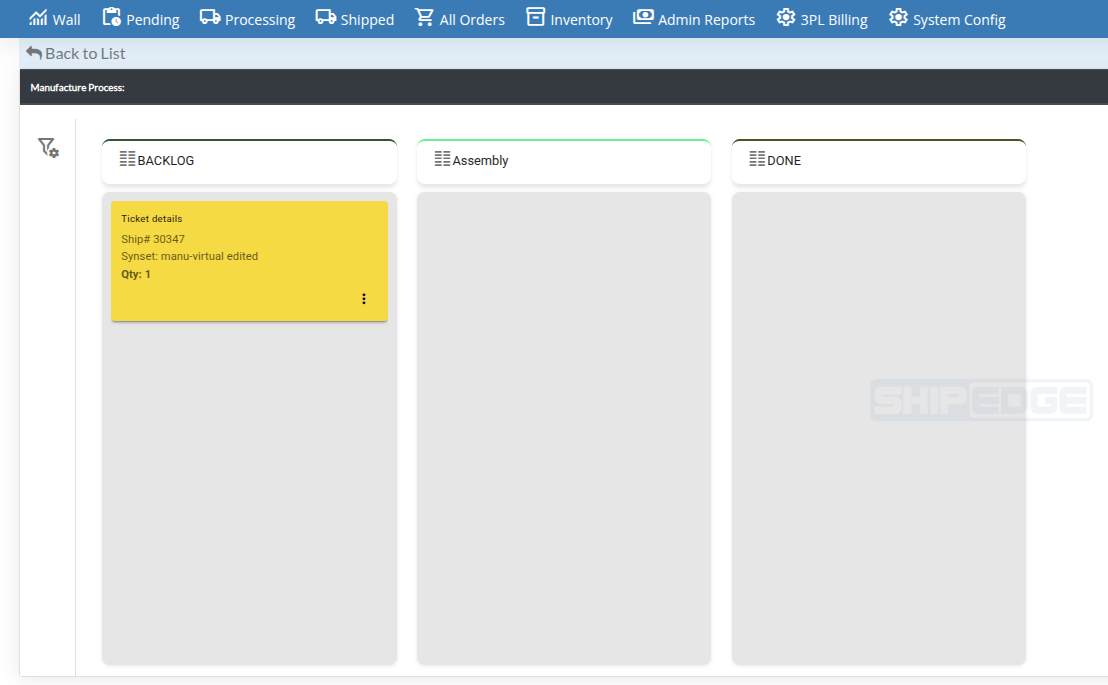
Templates and BOM definitions created in OMS become the statuses and components the floor sees on each manufacturing order.
Pending and Processing stay the central places to select work, run bulk actions, and finish labels when the order is ready to ship.
Processing includes a Manufacturing quick filter and an Order Type value of manufacture so you can isolate assembly jobs.
Column names from the assigned template map to statuses on live manufacturing work until the job is done.
Verify BOM SKUs, components, and Kanban templates before large builds so the floor does not stop for missing Synset data.
On busy Processing screens, use Manufacturing or Order Type: manufacture before other filters so assembly work stays visible.
Because pause actions skip MANUFACTURE orders, agree on an alternate hold process with supervisors when assembly must stop.
| Problem | What to check |
|---|---|
| No manufacturing actions on Pending | Manufacturing module and warehouse preferences; see Manufacturing - setup. |
| Wrong or missing Kanban columns | Template assignment on the Synset in OMS; template edits apply only to new orders. |
| Cannot pause a manufacturing order | MANUFACTURE orders exclude Pause Ship; see Processing Orders bulk actions. |