Returns management in the OMS (Order Management System) allows you to create return requests (RMAs) from shipped orders, specify which items customers are returning, generate prepaid shipping labels, and track returns until they reach IN-TRANSIT status. Once a return reaches IN-TRANSIT, the warehouse (WMS) takes over the processing.
This documentation covers the seller-side workflow from creating a return to sending the label to the customer.
Access Shipped Orders
From the Returns page, click Shipped Orders (Quick access button at the top), or go to Orders and filter by Shipped status.
Find the order you want to create a return for (order must be in Shipped status).
Click the Shipping# to open the order view.
Initiate Return
From the shipped order view, click “Initiate Returns” in the order actions.
A pop-up appears: “This action will initiate a restocking request. Click Ok to continue, or click Cancel to return.”
If a return already exists for this order: “A return already exists for this Ship #. Selecting Continue will initiate a restocking request.”
Click Ok and the return creation form opens.
Select Items to Return
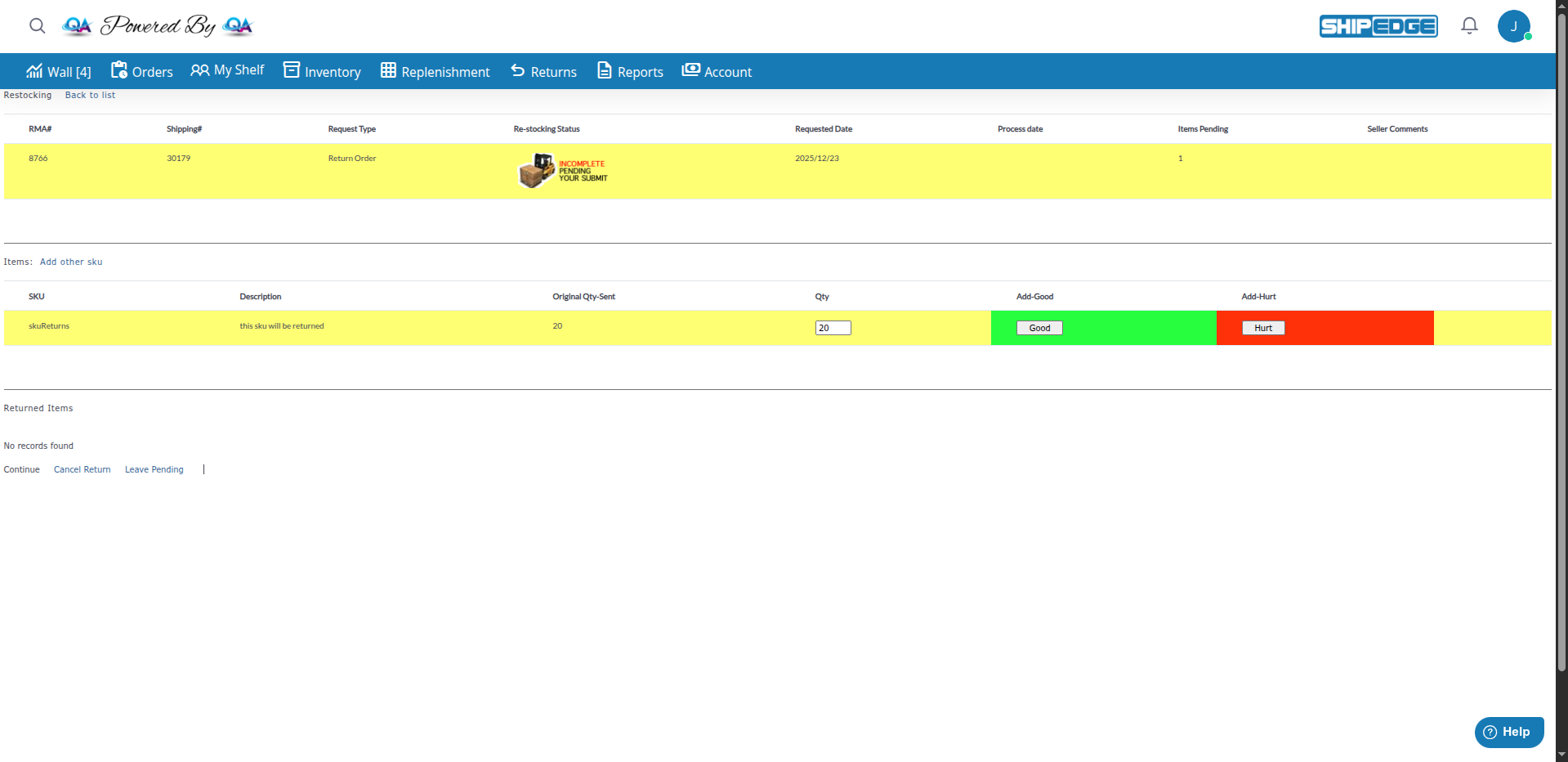
In the return form, you’ll see all items from the original order:
For each item, specify the quantity being returned and allocate to Good and Hurt as expected
Quantity : How many units are being returnedQty-good (expected) : How many you expect to be in good conditionQty-hurt (expected) : How many you expect to be damaged
The total (Qty-good + Qty-hurt) should equal the quantity being returned
Next, click the Continue button located below the list of items.
Add Return Instructions
In the comments field, provide instructions for warehouse staff:
How to inspect products
What to expect (condition, quantities)
Any special handling requirements
Customer communication notes
Generate Return Label (Optional)
If you want to generate a prepaid return label:
Check the option to generate a prepaid return label (when available)
Select shipping method
System generates label automatically
Label is sent to customer via email
Specify Return Type
Select the return type:
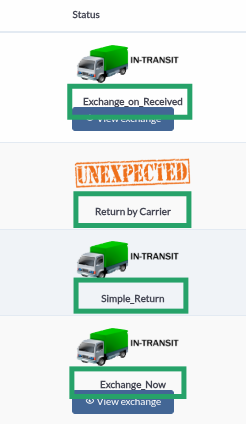
Simple Return : Customer returns product for refundExchange on Received : Exchange processed when return is receivedExchange Now : Exchange sent immediately
Complete and Save the Return
Complete the form and save. The system:
Creates the RMA record
Sets status to PENDING if no label, or IN-TRANSIT if label generated
Sends label email to customer (if applicable)
Records return details for warehouse processing
Track Return Status
Monitor the return in the Returns list:
PENDING : Return created, label not yet sentIN-TRANSIT : Customer has shipped the packageOnce IN-TRANSIT, warehouse takes over processing
Access
Navigate to Returns from the main menu to see all active returns.
What you’ll see:
Return ID (RMA#)
Shipping Number(*)
Order Number
Order Reference
tracking Number
Status (PENDING, IN-TRANSIT, PROCESSING, DISCREPANCY, COMPLETE, UNEXPECTED)
Return Type (Simple Return, Exchange_on_Received, Exchange_Now, Restocking, Return by Carrier)
Request Date
Received Date
Processed Date
Email(*)
From(*)
Country/Zip(*)
Items and Quantities
Available actions:
Click on a return to view details
Search and filter returns
Export returns list
View archived returns
When Available
Edit returns that are in PENDING or IN-TRANSIT status.
What you can edit:
Items and quantities
Expected Good/Hurt quantities
Return type
Comments and instructions
Return shipping address
How to edit:
Open the return detail view
Click “Edit” or modify fields directly
Update quantities writing in the empty fields for Good/Hurt
Save changes
Note: Once warehouse starts processing, editing is limited.
Good/Hurt Adjustment
Adjust expected Good and Hurt quantities for each item.
How it works:
Write in the empty field to increase or decrease Good or Hurt quantities
Total (Good + Hurt) must equal quantity being returned
Changes are saved automatically
When to adjust:
Customer reports damage before shipping
You want to set expectations for warehouse
Return conditions change
Prepaid Labels
Generate prepaid shipping labels for customers to return items.
How it works:
Select shipping method from available carriers
System generates prepaid label
Label is automatically emailed to customer
Label can be downloaded from return detail view
Return status changes to IN-TRANSIT when label is generated
When to generate:
Customer requests return label
You want to provide prepaid return shipping
Standard return process requires label
Access: From return detail view, click “Generate Label” or check option during return creation.
Customer Communication
Send return label to customer via email.
How it works:
System automatically sends email when label is generated
Email includes return label PDF attachment
Customer receives return instructions
You can resend email if needed
Manual send:
From return detail view, use the option to resend the label email if available
System sends email with current label attachment
When Available
Cancel returns that haven’t been processed by warehouse.
When you can cancel:
Return is in PENDING status
Return is in IN-TRANSIT status
Warehouse hasn’t started processing
How to cancel:
Open return detail view
Click “Cancel” button
Confirm cancellation
Return is removed from active list
Note: Once warehouse starts processing, cancellation may not be available.
The OMS manages returns through two main statuses. Once a return reaches IN-TRANSIT , the warehouse (WMS) takes over physical processing, but you can still view and track the return.
What it means : The return request exists, but no shipping label has been created yet. This is your active editing window.
What happens in this status:
Return is created and waiting for label generation
Customer has not received return instructions yet
You have full control to modify the return
What you can do:
Edit everything : Items, quantities, Good/Hurt expectations, return type, commentsCancel return : Remove the return if no longer neededAdd instructions : Provide warehouse notes before label is sent
Transitions to : Changes to IN-TRANSIT automatically when you generate the return label.
What it means : The return label has been generated and sent to the customer. The customer is shipping (or has shipped) the package back to the warehouse.
What happens in this status:
Customer received return label via email
Package is in transit or about to be shipped
Warehouse will process when package arrives
You can monitor but cannot modify most details
What you can do:
View and track : See return details and track the packageDownload label : Access the return label PDFResend email : Send label email again if customer needs itLimited editing : Some fields may still be editable, but items and quantities are locked
Important : This is the last status you control. Once warehouse receives the package, they take over processing.
Transitions to : Warehouse changes status to PROCESSING when they receive the package.
Description : Customer returns product for refund or credit.
Flow :
Customer returns item
Warehouse processes return
Inventory updated
Refund processed (if applicable)
Use when : Customer wants refund or store credit.
Description : Exchange that is processed when the return is received at warehouse.
Flow :
Customer returns original item
Warehouse receives and processes return
Replacement product is shipped automatically
Inventory updated
Use when : Customer wants exchange and you want to verify return before sending replacement.
Description : Exchange where replacement is sent immediately.
Flow :
Replacement product shipped immediately
Customer returns original item
Warehouse processes return when received
Inventory updated
Use when : Customer needs replacement quickly and you trust they’ll return original.
Description : Return from dropshipping or sales channel (e.g., Amazon FBA) that you record in ShipEdge.
Flow :
Return occurs outside ShipEdge (e.g., at Amazon FBA)
You create a restocking/return record to update inventory
Warehouse or system processes the record
Inventory updated
Use when : Recording returns handled by channels like Amazon FBA or dropship that ship to other locations.
Description : Return handled by shipping carrier.
Flow :
Carrier handles return process
Warehouse receives from carrier
Warehouse processes return
Inventory updated
Use when : Using carrier return services.
Field Description SKU Product identifier being returned Description Product name and attributes, including Opt1, Opt2, Opt3 when available. May show [OTP] for One-Time Products Items & Quantities Quantity being returned (for original items) or quantity sent (for restocking items) Qty-good (expected) Your estimate of items in good condition. In some views, use the Good button to allocate. Qty-hurt (expected) Your estimate of damaged items. In some views, use the Hurt button to allocate. Added by Seller Indicator shown when item was added manually by seller (not from original order)
Specify accurate Good/Hurt quantities so warehouse knows what to expect.
Add detailed comments for warehouse staff about inspection requirements.
Generate return labels quickly so customers can ship returns without delay.
Monitor return status regularly to ensure smooth processing.
Ensure customers receive return labels and instructions promptly.
Double-check items and quantities before submitting return.
Situation: Customer wants to return a product for refund.
Action:
Navigate to shipped order
Click “Initiate Returns”
Select item(s) to return
Set quantities (allocate to Good and Hurt as expected)
Select Simple_Return as return type
Generate return label
Submit return
Customer receives label via email
Situation: Customer reports damaged item and wants to return it.
Action:
Create return from shipped order
Select damaged item
Set Qty-good (expected): 0 , Qty-hurt (expected): 1 (or appropriate quantities)
Add comment: “Customer reports damage”
Generate return label
Submit return
Warehouse will verify damage when received
Situation: Customer wants to exchange for different size/color.
Action:
Create return from shipped order
Select items to return
Choose Exchange_on_Received or Exchange_Now as return type
Set quantities and expectations
Generate return label
Submit return
System handles exchange automatically when return is processed
Can't Find Order to Create Return
Cause: Order may not be in an eligible status or may already have a return.
Solution:
Verify order is in Shipped status
Check if return already exists for this order
Use search to locate the order
Contact support if order should be eligible
Return Label Not Generating
Cause: Shipping method may not be configured or carrier issue.
Solution:
Verify shipping methods are configured
Check carrier integration status
Try different shipping method
Contact support if issue persists
Can't Edit Return
Cause: Return may be in status that doesn’t allow editing.
Solution:
Only PENDING and IN-TRANSIT returns can be edited
If warehouse started processing, editing is limited
Contact warehouse if changes needed after processing starts