
One BOM SKU per Synset
Keep a single BOM SKU assignment per SynSet; the catalog enforces uniqueness.
The Manufacturing setup in OMS defines how BOM SKUs (assembled products) are built from components, using Synsets and optional Kanban templates. This page covers BOM SKUs (including how to create them), and the Kanban Board (including Create Templates).
The Manufacturing module helps you sell assembled products called BOM SKUs. Those products are produced through Manufactured orders, which work like internal work requests: they tell the warehouse team that assembled units are needed. When assembly finishes, BOM SKU inventory reflects the new quantity.
To steer the assembly flow, you can use Kanban.
In this guide you will learn:
A BOM SKU is a product that must be assembled before it is ready to ship. In ShipEdge Core, BOM SKUs use Synsets (kits that list multiple SKUs) to drive the manufacturing process.
The important difference:
| Concept | Role |
|---|---|
| BOM SKU | The finished unit built through Manufacturing. After manufacturing completes, customer orders that include this SKU behave like normal orders for fulfillment. |
| Synset | A kit that lists component SKUs and quantities on an order; each line can be treated as its own line item until you use the Manufacturing path for the BOM SKU. |
For more on Synsets in general, see SKU Substitutions and Synsets.
Example (conceptual):
Before this process you need to create a sku in the catalog first. Go to Inventory and add the product the same way you add any other SKU.
Open SKU Substitutions
Go to Inventory, then open SKU Substitutions. The page title is SKU Substitutions.
Open Sets (Synsets)
If Aliases opens first, select the Sets (Synsets) tab.
Start Create
Click Create. In the dialog choose Kits: Translate kits or bundles to components, then click Continue.
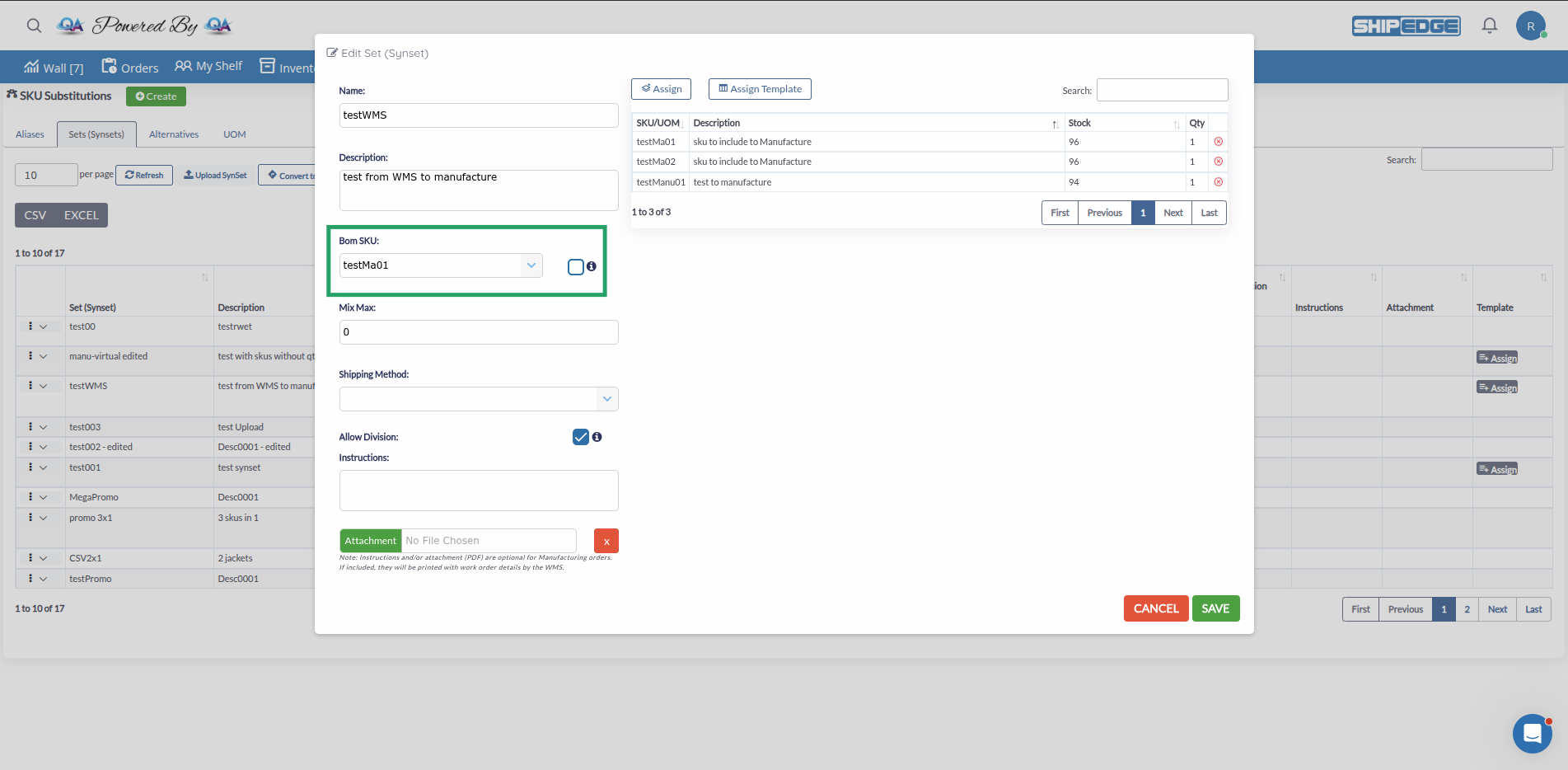
Fill the Synset form (manufacturing-related fields)
Main fields for this module:
Assign component SKUs
Use Assign (Synset list) to assign and add each component SKU and quantity. When finished click on CLOSE button. You should see the SKUs listed for the BOM SKU.
Save
Click on Save button to save the Synset. It is now linked to the BOM SKU. If components have stock, the Synset can show available build capacity; the BOM SKU itself may still show no finished inventory until manufacturing runs.
For column-level detail, validation, and BOM SKU uniqueness rules, see Synsets.
The system includes Kanban so you can define steps and statuses a product passes through before it is done. Templates are the blueprints: they define columns that become statuses on the board the warehouse uses.
Fixed statuses: Every template includes Backlog and Done. Those two cannot be removed or renamed away.
Templates and their columns cannot be deleted after creation—plan names and columns carefully.
Open the Synset
Go to Inventory → SKU Substitutions → Sets (Synsets). Find the BOM SKU you need and click Assign (template assignment).
Review the default template
The list shows templates; BOM SKUs start with a default template. Use the eye icon to open it. The default includes statuses such as Backlog, Assembly, and Done. That default template cannot be edited or deleted.
Create a custom template (optional)
To use a different flow, return to the template list and click New. Complete the form:
Assign the template to the BOM SKU
When the new template appears in the list, open it and assign it to the current BOM SKU as needed.
Optional: assign while editing the BOM SKU
You can also set templates from the BOM SKU create/edit flow using the same assignment steps.
Read-only manufacture order listing for integrations: GET /apirest/v4/oms/manufacture and GET /apirest/v4/oms/manufacture/{order}. Synset APIs live under /apirest/v4/oms/inventory/synsets. Use headers Key and AccountID and see REST API OMS.
Keep a single BOM SKU assignment per SynSet; the catalog enforces uniqueness.
You cannot delete templates or remove columns after the template is saved—design statuses before going live.
Stay within 255 characters for Instructions so work orders stay readable.
| Problem | What to check |
|---|---|
| No Instructions / Attachment on the SynSet form | Manufacturing must be enabled in warehouse preferences; fields stay hidden until then. |
| Cannot assign BOM SKU | The SKU must exist and cannot be tied to another SynSet. See Synsets. |
| Need to run manufacturing | Use WMS: Pending → Manufacture, then Processing / Kanban—not this OMS setup page. |