
Fix Customer Information
Correct typos in customer names, update email addresses, or fix phone numbers before orders are processed.
Edit orders to correct customer information, update shipping addresses, modify product quantities, or change shipping methods. Orders can only be edited when they are in specific statuses that allow modifications.
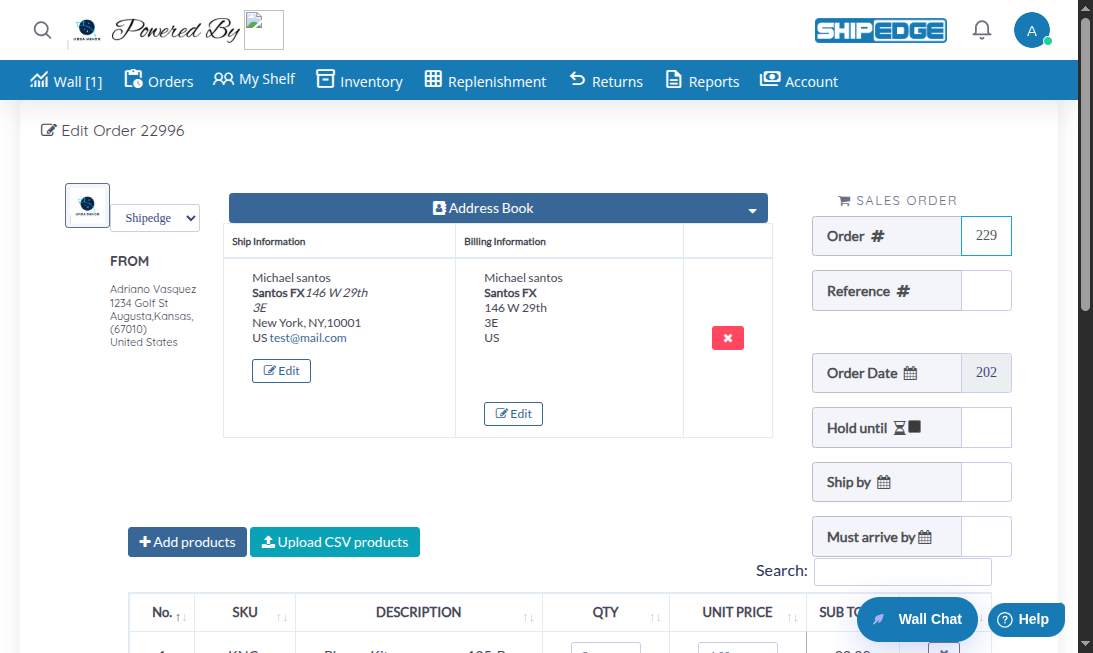
Correct typos in customer names, update email addresses, or fix phone numbers before orders are processed.
Change delivery addresses when customers request updates or when addresses are incomplete or incorrect.
Adjust quantities, add or remove items, or update SKUs when order details change before processing begins.
Update shipping methods or carriers when customers request different delivery options or when methods are unavailable.
Orders can only be edited when they are in specific statuses. The Edit option appears in the actions menu (three-dot menu) for orders in these statuses:
Navigate to Orders List
Go to Orders from the main menu directly. The orders list displays all your orders in a table.
Find the Order to Edit
Use the search bar or filters to locate the specific order you want to edit. You can search by Order ID, Order Number, Reference Number, or Customer Name.
Click the Actions Menu
Click the three-dot menu (⋮) on the order row. Look for the Edit option, which only appears for orders in editable statuses. Click Edit to open the order editing form.
Edit Order Details
The editing form opens with the same interface used for creating orders. All order information is pre-filled with current values. The form includes these sections:
Update Customer Information
In the Customer Information section, edit:
Modify Products
In the Products section:
Change Shipping Method
Click the shipping method area to open the shipping modal:
Review and Save
Review all changes in the form. Click Save Order to save your edits and update the order. You’ll be redirected back to the orders list.
The order editing form uses the same interface as order creation, with all fields pre-filled with current order data. The form is organized into these sections:
This section includes two tabs: Ship Information and Billing Information.
Ship Information (Required):
Billing Information (Optional):
Located in the right sidebar, this section shows:
The products table shows all current order items:
Modifying Products:
Click the shipping method area to open the shipping modal with all carrier and shipping options:
Carrier & Method:
Shipping Options:
Special Options:
The order totals area shows:
When you edit an order:
Status Changes: The order status automatically changes to (Currently Being Edited) to prevent other users from editing it simultaneously.
Original Status Saved: The system saves the original status so it can be restored if needed.
Status Restored: After you save changes, the order returns to its original status or moves to the next appropriate status based on your edits.
After you save your edits:
If an order is already being edited and you are the user who started editing it, you can click Edit again to continue editing and finish your changes. You’ll see a confirmation message asking if you want to continue editing.
Verify the order status before attempting to edit. Only orders in specific statuses can be modified.
Finish editing promptly to return the order to its normal workflow. Orders in Status 64 are locked from other operations.
Double-check customer names, addresses, and contact information before saving changes to avoid shipping errors.
Confirm all product quantities and SKUs are correct. Incorrect product information can cause fulfillment issues.
Change shipping methods before orders enter processing to avoid delays or additional costs.
If editing complex orders, save your progress frequently. Use the form’s navigation links to move between sections.
Problem: The Edit button doesn’t appear for an order.
Solution:
Problem: You see “The Shipping# can’t be edit. please check the order status.”
Solution:
Problem: After clicking Save Order, changes don’t appear.
Solution:
Next Steps: After editing orders, learn about Order Status & Workflow to understand how order statuses change throughout the fulfillment process.