
Quick Status Overview
See at a glance how many orders are in each status category. No need to manually filter or search.
Order Alerts help you quickly identify orders that need attention. These alerts appear at the top of the Orders view and show counts of orders in specific statuses. Click any alert to instantly filter the orders table and see only orders with that status. This saves time when you need to focus on error orders, backorders, holds, or other statuses requiring action.
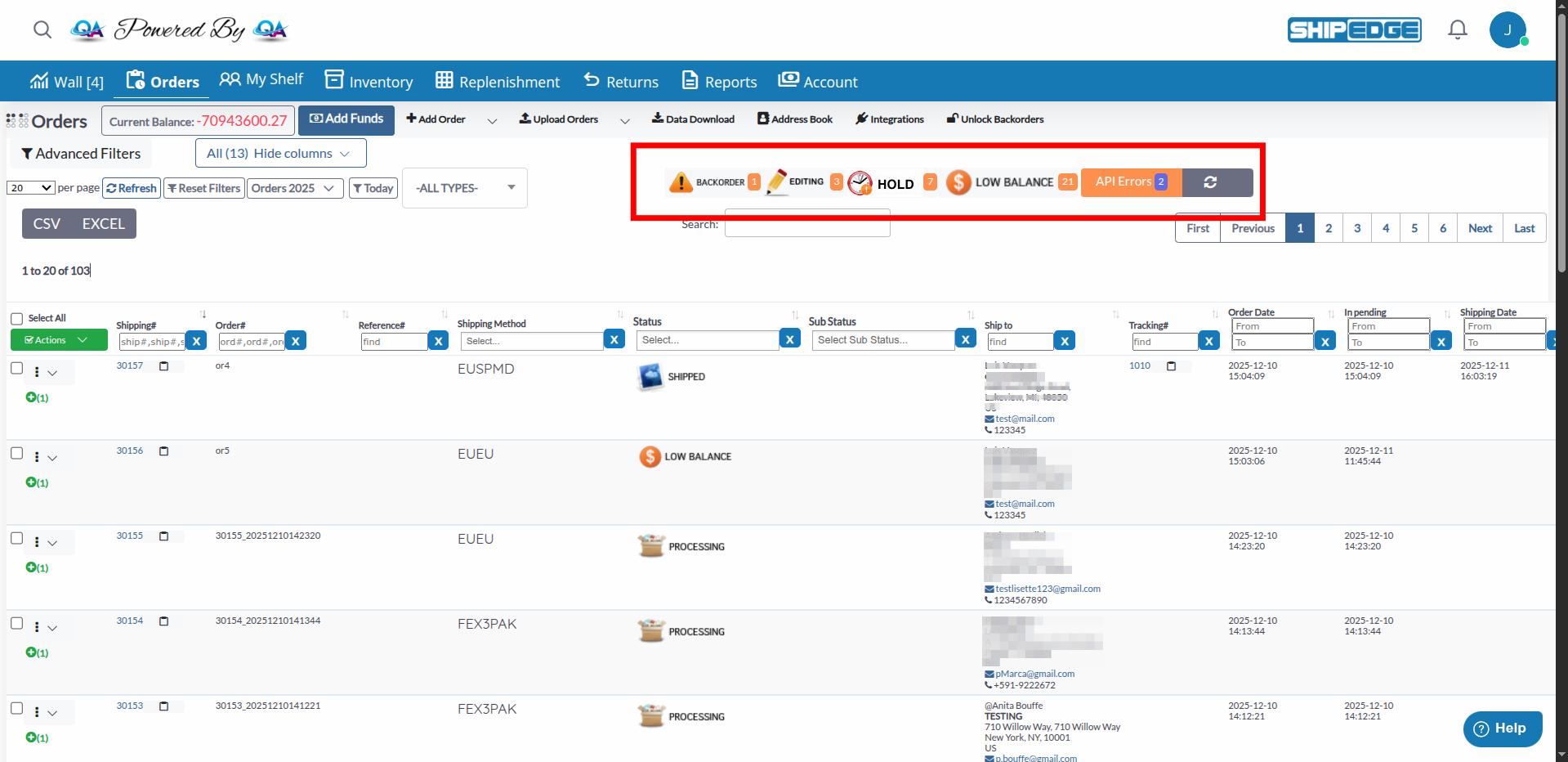
See at a glance how many orders are in each status category. No need to manually filter or search.
Click an alert button to instantly filter the orders table. Jump straight to orders that need your attention.
Quickly spot order errors and issues. Error alerts appear prominently with counts so you can address problems fast.
Monitor backorders, holds, and other statuses in real-time. Alert counts update automatically as orders change status.
Order alerts appear in the Orders view (/orders.php) at the top of the page, in the area above the orders table. They show as buttons with status names and yellow badges showing order counts.
Status Alerts: These alerts show orders in specific statuses that typically need attention:
Error Alerts: Special alerts for order errors that appear with an Amazon icon:
Each alert shows:
Alerts only appear if there are orders matching that status. If no orders match, the alert button doesn’t show.
Navigate to Orders View
Go to Orders in the main menu, or navigate directly to /orders.php. The alerts appear automatically at the top of the page.
Review Alert Counts
Look at the alert buttons to see:
Click an Alert to Filter
Click any alert button to:
View Filtered Orders
After clicking an alert:
Clear Filters
To return to viewing all orders:
Check Error Alerts
If you see an Order error alert:
Refresh Alerts
Alerts update automatically, but you can refresh:
Orders with validation or processing errors:
Action: Review error details, fix issues, and resubmit orders.
Orders waiting for inventory:
Action: Monitor inventory levels, process replenishments, or release when stock available.
Orders placed on hold:
Action: Review hold reason, resolve issues, and release orders.
Orders in stand-by status:
Action: Review stand-by reason and release when ready.
Orders with incomplete information:
Action: Complete missing information to allow processing.
The Order error alert appears separately from status alerts:
When it appears:
How to use:
Review order alerts at the start of each day to identify orders needing immediate attention. Start with Error alerts.
Address Error status alerts first. These orders are blocked and need resolution before they can proceed.
Regularly check Backorder alerts to ensure inventory replenishment is progressing. Release orders when stock arrives.
Create daily workflows based on alerts. For example: Check Errors → Review Holds → Process Backorders → Monitor Processing.
After fixing order issues, refresh the page to see updated alert counts. Verify alerts decrease as problems resolve.
Monitor alert counts over time. Increasing API Errors or Backorder counts may indicate systemic issues needing attention.
Alerts not appearing
Alert count seems wrong
Clicking alert doesn’t filter
Error alert not showing
Alerts showing old counts
If alerts aren’t working correctly: