
Skip to content

SKU Management

SKU Management lets you control the complete lifecycle of your product SKUs from creation to discontinuation and deletion. Manage active inventory, set up alternative SKUs for replacements, and track changes across your catalog.
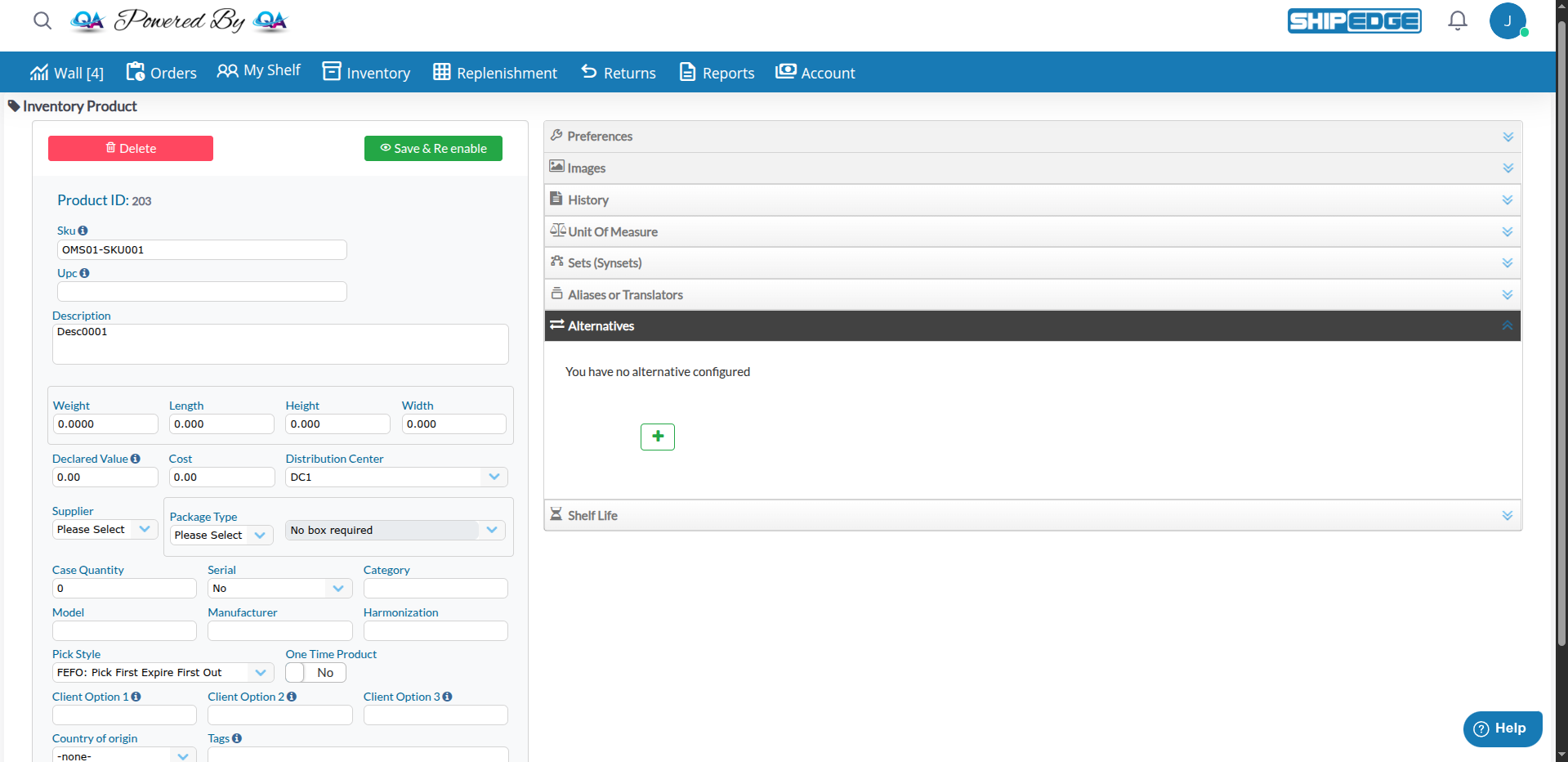
SKU Management

Product Transition

Smoothly transition from old to new products by discontinuing and setting up alternatives.

Inventory Control

Prevent new orders for discontinued items while clearing existing stock.

Data Integrity

Maintain historical records while safely removing obsolete SKUs from active inventory.

Automatic Substitution

Set up alternative SKUs for automatic replacement when original SKUs are unavailable.

A SKU progresses through three main states:

Active → Discontinued → Deleted

State: Discontinued = 'N'

  • Available for new orders
  • Appears in product catalog
  • Inventory can be received
  • Fully functional in all operations

State: Discontinued = 'Y'

  • Cannot receive new orders (system blocks new purchases)
  • Still appears in catalog (marked as discontinued)
  • Existing inventory can be shipped
  • Can be reactivated if needed
  • Can be renamed or deleted (admin only)

State: Removed from products table

  • Permanently removed from system
  • Only available for discontinued SKUs
  • Historical data preserved in related tables (orders, history)
  • Cannot be recovered after deletion
  1. Open the Product

    Navigate to Inventory > Catalog (catalog_list.php), then click on the SKU you want to discontinue. This opens the product in the modern editing interface (up-product.php).

  2. Click “Discontinue” (Admin users only)

    In the product form, locate the Discontinue button at the top-left of the form (next to the product header). The button shows a notification-off icon and includes an info icon.

  3. Review Active Orders

    A confirmation dialog appears showing any orders in the following statuses:

    • Pending
    • Processing
    • Backorder

    The Discontinue button in the dialog is disabled if active orders exist.

  4. Confirm Discontinuation

    If no active orders exist, the Discontinue button becomes enabled. Click it to confirm.

    The SKU status changes to Discontinued = 'Y' and the form updates:

    • The Discontinue button is replaced with a Delete button
    • The Save button changes to Save & Re enable
    • The SKU field becomes editable (you can rename it)
  5. Set Up Alternative SKU (Optional but recommended)

    If you have a replacement product, navigate to SKU Substitutions from the Catalog toolbar to assign an alternative.

  1. Open the Discontinued Product

    Navigate to Inventory > Catalog (catalog_list.php), then click on the discontinued SKU. This opens the product in the editing interface (up-product.php).

  2. Click “Save & Re enable”

    The Save button automatically changes to Save & Re enable (with a show icon) for discontinued SKUs. This button appears at the top-right of the form.

  3. Save Changes

    Click Save & Re enable to save any changes and reactivate the SKU.

    System immediately changes the status to Discontinued = 'N' and:

    • The button changes back to Save
    • The Delete button is replaced with Discontinue
    • The SKU field becomes read-only again

    The SKU becomes available for new orders again.

  1. Discontinue the SKU First

    Follow the discontinuation process above. The SKU must have Discontinued = 'Y'.

  2. Open the Discontinued Product

    Navigate to the product in Catalog (catalog_list.php) and click on the discontinued SKU to open it in the editing interface (up-product.php).

  3. Click “Delete”

    The Delete button (red, with trash icon) appears at the top-left of the form, replacing the Discontinue button for discontinued SKUs.

  4. Confirm Deletion

    A confirmation dialog appears. System checks for:

    • No pending inventory
    • No active orders
    • No unresolved backorders

    If checks pass, click OK to permanently remove the SKU.

  5. SKU is Removed

    The SKU is deleted from the products table. Historical references remain in order history and transaction logs.

Alternative SKUs provide automatic substitution when the original SKU is unavailable or discontinued.

Alternative SKUs are replacement products that the system can automatically use when:

  • Original SKU is discontinued
  • Original SKU is out of stock
  • Order processing requires a substitute

Example Use Cases:

  • Product rebranding (old SKU → new SKU)
  • Package size changes (12-pack → 24-pack)
  • Color/style variations (Blue-M → Blue-L)
  • Supplier changes (Same product, different source)
  1. Navigate to SKU Substitutions

    Go to Inventory > Catalog (catalog_list.php), then click the SKU Substitutions button (vector icon) in the Catalog toolbar. This opens the SKU Substitutions interface (item_subtitute_manager.php) in a new tab.

  2. Select the Alternatives Tab

    The interface has multiple tabs:

    • Aliases: Link channel SKUs to inventory SKUs
    • Sets (Synsets): Translate kits or bundles to components
    • Alternatives: Map replacement SKUs for products
    • UOM: Designates the quantity of a SKU as a pack (if enabled)

    Click the Alternatives tab.

  3. Click “Create”

    Click the Create button at the top-right of the interface.

  4. Select Original SKU

    In the creation modal, search for and select the original SKU that needs a replacement.

  5. Select Alternative SKU

    Search for and select the SKU that will replace the original.

  6. Configure Relationship

    Set the relationship type and any additional options:

    • Type: Alternative relationship type
    • Bidirectional: Whether the relationship works both ways
    • Synset: If this is part of a product family/synset
  7. Save the Alternative

    Click Save to create the alternative SKU relationship:

    Original SKU → Alternative SKU
  8. Verify the Assignment

    The alternative now appears in the Alternatives tab table. When the original SKU is unavailable, the alternative may be used automatically.

The Alternatives tab displays a table with:

  • SKU: Original product SKU
  • UPC: Product UPC/barcode
  • Description: Product description
  • Units In Stock: Current inventory level
  • Alternative: The replacement SKU assigned
  • Synset: Whether this is part of a synset

Actions Available:

  • Edit: Modify an existing alternative relationship
  • Delete: Remove an alternative relationship
  • Search/Filter: Use column filters to find specific alternatives

Every change to a SKU is tracked in the system:

  • Product attribute changes (dimensions, weight, cost)
  • Inventory adjustments (receive, corrections, transfers)
  • Status changes (discontinued, reactivated)
  • Order history (all orders containing this SKU)
  • Replenishment history (receiving logs)
  • Return history (restocking logs)

To View SKU History:

  1. Open the Product

    Navigate to Inventory > Catalog (catalog_list.php), then click on the SKU you want to view.

  2. Access History Tab

    In the product editing interface (up-product.php), click the History tab on the right side of the form.

  3. Review History

    View all changes chronologically with:

    • Timestamps
    • User information
    • Action type (Received, Picked, Adjusted, etc.)
    • Inventory levels before and after each action
    • Location, bin, lot, and expiration date information

Alternative Access:

  • From Catalog, click the actions menu (⋮) on any SKU row and select History
  • This opens the full history view (History_skulist.php) in a new tab

SKU management operations are available in multiple places:

Catalog Overview

Location: /catalog_list.php

  • Modern interface for viewing all SKUs
  • Click SKU to open in edit mode
  • Access to SKU Substitutions, Suppliers, Attributes
  • Transfer products
  • Change pick styles
  • View product history

Creating/Editing Products

Location: /up-product.php

  • Modern product creation and editing interface
  • Create new SKUs
  • Edit existing SKUs
  • Discontinue SKUs (admin only)
  • Delete SKUs (admin only)
  • Reactivate discontinued SKUs
  • Manage images, UOMs, aliases, alternatives

SKU Substitutions

Location: /item_subtitute_manager.php

  • Modern interface for managing SKU relationships
  • Aliases: Link channel SKUs to inventory SKUs
  • Sets (Synsets): Manage product families/bundles
  • Alternatives: Set up replacement SKUs
  • UOM: Manage unit of measure packages (if enabled)

Product Attributes

Location: /AttributosProductslist.php

  • Bulk edit attributes
  • Update dimensions/weights
  • Assign suppliers

SKU History

Location: /History_skulist.php

  • View change history
  • Track inventory movements
  • See order history
  • Accessible from Catalog via actions menu

Discontinue Before Deleting

Always discontinue a SKU first to ensure no active orders exist. Only delete after stock is depleted.

Set Up Alternatives Early

When discontinuing a SKU, immediately set up alternatives to prevent order fulfillment issues.

Document Reasons

Use the product description or notes to document why a SKU was discontinued for future reference.

Review Before Deletion

Before deleting, verify that all inventory is depleted and no pending transactions exist.

Follow these best practices when creating SKUs:

Recommended Format:

  • Use alphanumeric characters and underscores/hyphens only
  • Avoid spaces, special characters, or symbols
  • Keep SKUs concise but descriptive (e.g., SHIRT-BLU-M instead of Item1)
  • Use consistent prefixes for product families
  • Include relevant attributes (color, size, variation)

Examples:

  • ✅ Good: LAPTOP-15IN-BLK, CASE-IPHONE14-RED, BOOK-PYTHON-2023
  • ❌ Bad: Item #1, Product (Blue), SKU/123, New Product

Problem: System prevents discontinuation.

Common Causes:

  • Pending Orders: Orders in Pending, Processing, or Backorder status
  • Active Inventory: Stock still being received or transferred
  • System Reservations: Inventory reserved for future orders

Solutions:

  1. Check for active orders and complete or cancel them
  2. Wait for pending replenishments to be received
  3. Clear any backorders for this SKU
  4. Contact support if issue persists

Problem: Delete button not available or deletion fails.

Common Causes:

  • Not Discontinued: SKU must be discontinued first (Discontinued = 'Y')
  • Insufficient Permissions: Only admin users can delete SKUs
  • Active Inventory: Non-zero inventory quantity
  • Recent Transactions: Orders or movements within retention period

Solutions:

  1. Discontinue the SKU first
  2. Verify you have administrator permissions
  3. Ensure UnitsInStock = 0 across all locations
  4. Wait for transaction processing to complete

Problem: System doesn’t use the alternative SKU.

Common Causes:

  • Alternative Not Set: Relationship not created in system
  • Alternative Also Unavailable: Replacement SKU has no stock
  • Order Rules: Integration or order rules prevent substitution
  • Wrong Tab: Alternative may be set up in Aliases or Synsets tab instead of Alternatives tab

Solutions:

  1. Verify alternative is set up in SKU Substitutions > Alternatives tab
  2. Check that alternative SKU has available inventory
  3. Review order processing rules and integrations
  4. Verify the relationship type is correct (Alternative, not Alias or Synset)
  5. Test with a manual order to verify substitution works

Problem: Cannot create SKU due to duplicate error.

Solutions:

  • Check Active SKUs: Search catalog for existing SKU
  • Check Discontinued: Look in discontinued SKUs (may need reactivation)
  • Different DC: SKU may exist in another distribution center
  • Case Sensitivity: Some systems treat SKU1 and sku1 as different
  • Catalog Overview: Main view for browsing and managing all SKUs
  • Creating Products: Full SKU creation and editing interface
  • Product Attributes: Bulk update SKU attributes
  • Distribution Centers: Manage SKUs across multiple locations
  • Product Families: Group related SKUs together

Next Steps: Catalog Overview | Creating Products | Product Attributes