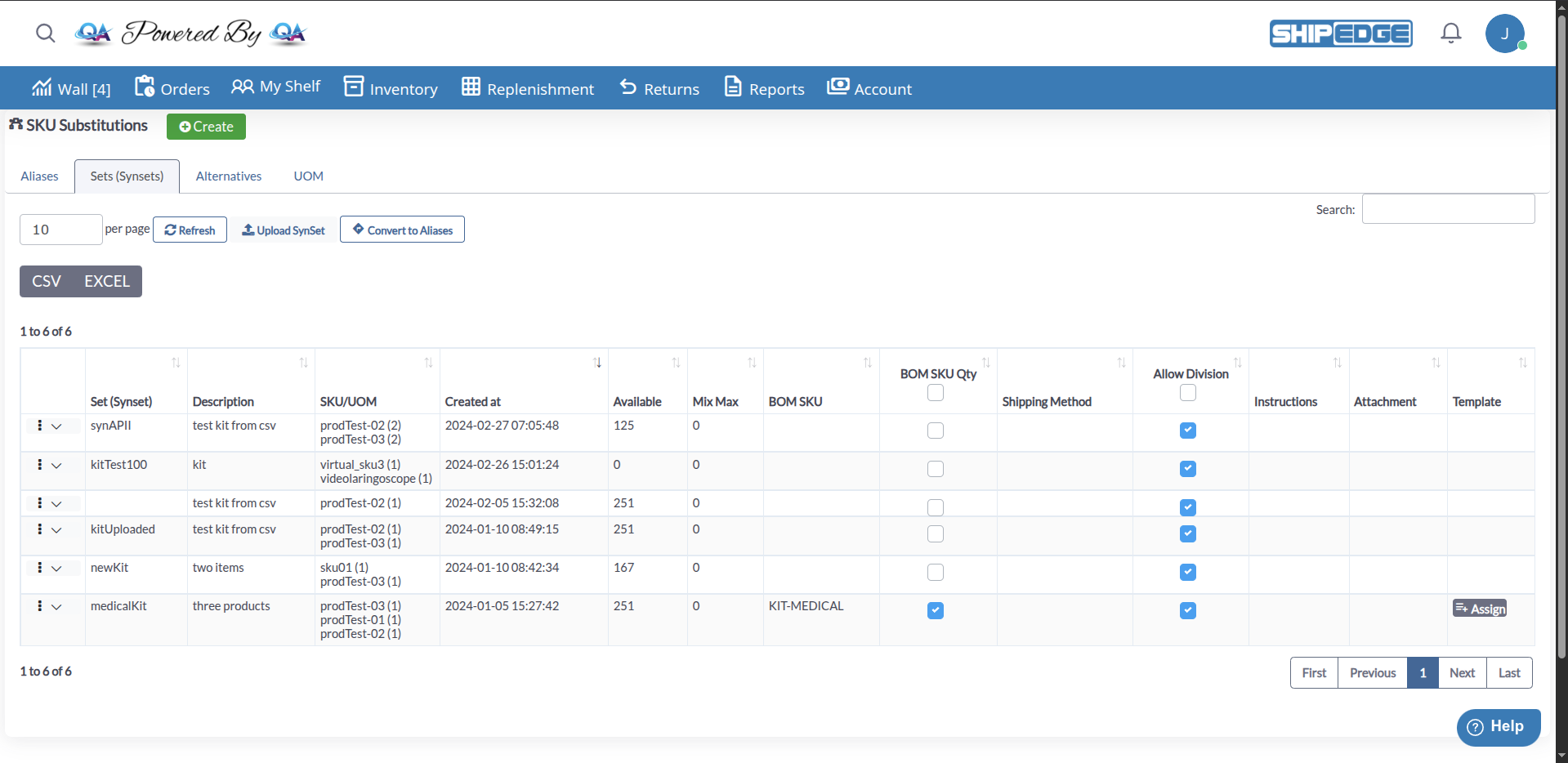
SynSets , allow you to group multiple individual SKUs and sell them together as a single unit. When a customer orders a SynSet, the system automatically deducts inventory from all included SKUs.
For example, you can create a “Gift Basket” that includes 3 chocolates, 2 candles, and 1 gift card. When someone purchases the Gift Basket, ShipEdge Core automatically reduces inventory of each individual item.
Use SynSets to sell promotional bundles, gift sets, complementary product kits, or special combos without having to create separate physical SKUs.
Sell multiple products as one without creating additional physical SKUs.
Inventory is automatically calculated based on component SKUs.
Create attractive bundle and kit offers to increase average order value.
Configure specific quantities, shipping methods, and custom rules for each SynSet.
When you create a SynSet, you define:
SynSet Name : A unique identifier (can be the same as an existing SKU or completely new)Included SKUs : The individual products that form part of the bundleQuantities : How many units of each SKU are includedAvailable Stock : Automatically calculated based on component inventory
The system calculates how many SynSets you can form based on the SKU with the lowest available inventory.
Example:
If your “Holiday Bundle” SynSet includes:
SKU-A: 3 units (100 in stock)
SKU-B: 2 units (50 in stock)
SKU-C: 1 unit (80 in stock)
SynSet Available Stock :
SKU-A allows: 100 ÷ 3 = 33 bundles
SKU-B allows: 50 ÷ 2 = 25 bundles ← Limiting
SKU-C allows: 80 ÷ 1 = 80 bundles
Result : You can only create 25 Holiday Bundles before running out of SKU-B.
You can create SynSets from two locations:
Navigate to SKU Substitutions
Go to Inventory → Catalog , then click the SKU Substitutions button (vector icon) in the Catalog toolbar.
Click “Create” Button
Click the Create button in the SKU Substitutions page header.
Select “Kits” Option
In the dialog that appears, select “Kits: Translate kits or bundles to components” .
Configure the SynSet
The system will:
Create a temporary SynSet with name __temp_new_name__
Open the SynSet form for configuration
Allow you to add component SKUs and configure settings
Navigate to Catalog
Go to Inventory → Catalog .
Click the Three Dots Menu
Find the SKU you want to use as the starting component and click the three dots (⋮) menu icon.
Select “Create Synset”
Click Create Synset from the dropdown menu.
Enter SynSet Name
In the modal dialog:
Synset : Enter a unique name for the SynSet (required, cannot be the same as the SKU)Sku : Shows the selected SKU (read-only)Click Create to create the SynSet
After creating a SynSet using either method, you’ll need to complete the configuration:
Complete Basic Information
In the SynSet form (from SKU Substitutions method):
SynSet Name : Unique name to identify the bundle (required)Description : Detailed description of the SynSet (optional)Mix Max : Maximum allowed quantity for mixing/combining (optional, max 250 characters)
Add Component SKUs
Add SKUs to the SynSet:
The initial SKU is already added (if created from Catalog method)
Use the “Assign” button to include products to the synset
Search or enter the SKU you want to include
Specify the Quantity of the SKU
Click Assign to add the SKU to the SynSet
Configure BOM SKU (Optional)
The BOM SKU (Bill of Materials SKU) is a main SKU that represents the complete bundle:
Enter the SKU code (must exist in your product catalog)
If you specify a BOM SKU, the system will mark that SKU as “BOM” in the product catalog
Useful for integrating with external systems or marketplaces
The BOM SKU must exist in your product catalog before assigning it
If the SKU doesn’t exist, you’ll see an error: “BOM SKU does no exist, Create SKU”
Enable BOM SKU QTY (Optional)
Check the BOM SKU QTY checkbox if you want the system to send BOM SKU quantities back to the marketplace or integrated system.
Select Shipping Method (Optional)
If you want to use a specific shipping method for this SynSet, select it from the dropdown list. This shipping method will be used if the order contains only 1 unit of this item. The method will not apply if the order contains other SKUs.
Save the SynSet
Click Save to save the SynSet configuration. The system will:
Create the SynSet with all component SKUs
Calculate available stock automatically
Update the SynSets list
When creating from SKU Substitutions, you start with a blank SynSet and add all component SKUs manually. This method gives you more control over the initial configuration.
Assign a main SKU that represents the complete SynSet. Useful for integrating with marketplaces like Amazon or Shopify.
Define the maximum allowed quantity for mixing or combining SKUs in the SynSet. Control your bundle’s flexibility.
Configure a specific shipping method for the SynSet, different from standard methods.
Add special packing instructions or attachments to guide warehouse staff.
The BOM SKU is a “virtual” SKU that represents the complete SynSet in external integrations:
How It Works : When you assign a BOM SKU, that SKU is marked as “BOM” in your catalog (status_product = 'bom_sku' in history table)Main Use : Integrate with marketplaces (Amazon, eBay, Shopify) that require a unique SKU for the bundleRequirement : The BOM SKU must exist previously in your product catalogBOM SKU QTY : Checkbox option to enable/disable sending BOM SKU quantities back to the marketplace or integrated systemBulk Enable/Disable : You can enable or disable BOM SKU QTY for multiple SynSets at once using the checkbox in the table header
You cannot use the same BOM SKU for multiple SynSets. Each SynSet must have its own unique BOM SKU or none at all.
If you enter a BOM SKU that doesn’t exist, you’ll see an error: “BOM SKU does no exist, Create SKU”
When you remove a BOM SKU from a SynSet, the system creates a history record: “Delete BOM SKU by SynSet”
Access SKU Substitutions
Navigate to Inventory → Catalog , then click SKU Substitutions button.
Go to SynSets Tab
Click on the Sets (Synsets) tab in SKU Substitutions.
Select the SynSet to Edit
Find the SynSet you want to modify in the list and click on the the three dots (⋮) menu icon.
Update Information
Modify any of the following fields:
SynSet Name : Unique name (cannot duplicate existing SynSet names)Description : Detailed descriptionMix Max : Maximum mixing quantity (max 250 characters)BOM SKU : Enter SKU code (must exist in catalog)BOM SKU QTY : Checkbox to enable/disable sending quantities back to marketplaceShipping Method : Select from dropdown (optional)
Add or Remove SKUs
To add SKUs : Use the “Assign” button to include products to the synset
To remove SKUs : Use the delete option in the component SKUs list
Save Changes
Click Save to confirm modifications.
ShipEdge Core allows importing and exporting SynSet configurations via CSV files from the SKU Substitutions interface.
You can export SynSets data directly from the SynSets table in SKU Substitutions:
Navigate to SKU Substitutions
Go to Inventory → Catalog , then click SKU Substitutions button.
Go to SynSets Tab
Click on the Sets (Synsets) tab.
Export Data
Use the export buttons in the table toolbar:
CSV : Exports current SynSets data to CSV formatEXCEL : Exports current SynSets data to Excel format
Files are named automatically: synsets_YYYY_MM_DD_HH_mm_ss.csv or .xlsx
Filter Before Export (Optional)
Apply filters to the table to export only specific SynSets before clicking the export button.
The export includes all visible columns in the SynSets table, including SynSet name, SKUs, quantities, description, stock, BOM SKU, shipping method, and other configured fields.
You can download CSV templates for creating SynSets:
Navigate to Upload SynSet Page
From SKU Substitutions → Sets (Synsets) tab, click the Upload SynSet button.
Download Template
Click the Download Template dropdown button to see available templates.
Select Template
Choose a template from the dropdown list. Templates define the field mapping structure for your CSV files.
You can upload SynSets via CSV using the new upload system with field mapping:
Navigate to Upload SynSet Page
From SKU Substitutions → Sets (Synsets) tab, click the Upload SynSet button.
Prepare Your CSV File
Your CSV file should include columns for:
synset : SynSet name (required)sku : Component SKU codesquantity : Quantity of each SKUdescription : SynSet description (optional)mix_max : Maximum mixing quantity (optional)bom_sku : BOM SKU code (optional)UOM_name : UOM name if using UOM feature (optional)
Upload the CSV File
Click Choose or drag sets (synsets) file… and select your CSV file
Click Upload button
The system will upload the file and redirect to the mapping page
Map CSV Fields (if needed)
If your CSV headers don’t match the standard format:
The system shows a visual mapping interface
Connect CSV column headers (left side) to SynSet fields (right side)
Select a template from the dropdown if you have saved templates
The system can auto-detect the best template match
Configure Import Options
Delete Set (SynSet) : Check this box if you want to delete existing SynSets before importing
Process the Import
Click Process button. The system will:
Validate the CSV format and field mappings
Check that all SKUs exist in your catalog
Create new SynSets with component SKUs
Show processing status and results
Review Upload History
Check the upload history table on the same page to see:
Upload ID and filename
Upload date
Processing results
Status (Pending, Processing, Completed)
Use clear and descriptive names for your SynSets that clearly indicate what the bundle contains (e.g., “Summer-Beach-Kit”, “Gift-Set-Birthday”).
Regularly identify which component SKU is limiting SynSet stock and replenish it first.
If you sell on external marketplaces, always assign a unique BOM SKU to facilitate inventory synchronization.
Validate your CSV file before importing SynSets in bulk to avoid configuration errors.
Create SynSets with products that are naturally used together to increase perceived value and sales.
Keep SynSet descriptions updated with promotion details, bundle benefits, or special instructions.
Problem : The SynSet shows stock 0 even when component SKUs have inventory.
Solution :
Refresh the page : Stock is recalculated when you load the SynSets list page. Try navigating away and back.Verify that all component SKUs have available stock
Identify the SKU with lowest relative stock (available stock ÷ required quantity)
That SKU is limiting SynSet stock
Replenish the limiting SKU to increase SynSet stock
Problem : When trying to assign a BOM SKU, you receive an error or the system doesn’t allow it.
Solution :
Verify that the BOM SKU exists in your product catalog
Make sure the BOM SKU is not assigned to another SynSet
If the SKU doesn’t exist, create it first in the product catalog and then assign it to the SynSet
Problem : When trying to add SKUs to the SynSet, they don’t save or an error appears.
Solution :
Confirm that SKUs exist in your product catalog
Verify that you’re entering quantities greater than zero
Make sure the SynSet name is not the same as an existing individual SKU (unless you intentionally want it)
Problem : The created SynSet doesn’t synchronize with your connected marketplace (Shopify, Amazon, etc.).
Solution :
Assign a BOM SKU to the SynSet
Enable the BOM SKU QTY option if the integration requires it
Verify inventory synchronization configuration in the integrations module
Review synchronization logs to identify specific errors
Problem : When trying to import a CSV file, you receive errors or SynSets don’t get created.
Solution :
Verify that the CSV file uses the correct format (download a template as reference)
Make sure all SKUs mentioned in the CSV exist in your catalog
Verify that quantities are valid numbers greater than zero
Confirm there are no special characters that break the CSV format
Unique Names : Each SynSet must have a unique name in your account. There cannot be two SynSets with the same name.Unique BOM SKU : A BOM SKU can only be assigned to one SynSet at a time.Real-Time Stock : SynSet stock is automatically recalculated whenever a component SKU’s inventory is updated.Integrations : To synchronize SynSets with external marketplaces, make sure to correctly configure the BOM SKU.
Create SynSets for seasonal offers:
“Valentine’s Day Gift Set” (chocolates + flowers + card)
“Back to School Bundle” (backpack + notebooks + pencils)
“Holiday Special Pack” (decorations + candles + treats)
Group products that are used together:
“Skincare Routine Kit” (cleanser + toner + cream)
“Coffee Lover Bundle” (coffee + mug + filters)
“Artist Starter Pack” (brushes + paints + canvas)
For products shipped in parts:
“Furniture Set” (table + 4 chairs)
“Gaming Setup” (console + controller + HDMI cable)
“Kitchen Appliance Kit” (blender + accessories + recipe book)
Create quantity bundles:
“3-Pack Protein Bars” (3x protein)
“Family Size Combo” (4x individual servings)
“Bulk Pack Socks” (6 pairs of socks)
You can convert SynSets to SKU aliases (translations) for use in specific channels:
Click “Convert to Aliases”
Located in the SynSets page header.
Select SynSets to Convert
Select the SynSets you want to convert from the list.
Choose Channel (Optional)
Select a specific channel/filename if you want the aliases to be channel-specific, or leave blank for account-wide aliases.
Confirm Conversion
The system will:
Check that the SynSet name is not already used in inventory, translators, or UOM
Create SKU translations (aliases) for each component SKU using the SynSet name
Delete the SynSet after successful conversion
Show errors if any SynSet cannot be converted (e.g., name conflict)
The SynSet name must be unique and not already exist in products, translators, or UOM tables
All component SKUs must exist in your catalog
After conversion, the SynSet is deleted and cannot be recovered
Next Steps:
Product Management - Learn to create and manage individual SKUs that will form part of your SynSetsProduct Catalog - Explore how to organize your complete catalog including SynSetsIntegrations - Configure SynSet synchronization with external marketplaces
See Also: